Shopify app
How to use Darjuro
Open the app from Apps in Shopify admin. The first open scans your catalog. These screens show what to read, what to fix, and when to scan again.
01
Read the score on Overview
Overview is the home screen. The ring is your AI Shopping Readiness score out of 100. The word under the number is the band: Ready, Mostly ready, Needs work, or Not ready. The line under the ring is the change since the previous scan. Beside the ring, Products is how many items the last scan covered, and Last sync is when that scan finished. The sentence under those facts says what is holding the score back. When a previous scan exists, Since last scan lists the readiness change, the sections that moved, and how many products still have each gap.
The free app scans up to 500 products per store. That note sits at the top of Overview.
02
See what holds the score back
The readiness score is the lower of two measurements: product quality (how much of the filled-in data passes checks) and data completeness (how much of the expected product data is filled in). The sentence under the ring names which measurement sets your score.
The rows under What's holding the score back are the gaps in that measurement. When completeness sets the score, each row is a missing field such as barcode or category. When quality sets the score, each row is a check area such as Purchasability or Discoverability, with how many checks passed. The line under the rows is the other measurement, for comparison. Open a missing-field row to start that fix on Overview.
03
Work the highest-impact fixes
Each row is one check, counted across the products it affects. An Error badge marks a gap agents skip. Automatic means Darjuro can apply it in one step — missing vendor can be set to your shop name on every open product. Manual means you enter the value; those rows show a Fix chip. Under the field, an estimate says what clearing that whole check is worth. The estimates do not add up. The exact change shows after the next scan.
A barcode row asks for the GTIN, UPC, or EAN printed on the product. It is for identification, and it is not required for every shopping flow. An image URL can lower the score: it clears the missing-image error, then the photo still needs alt text and, often, a second image. Darjuro warns you before you save without alt text.
Tap a row on Overview to open Work on this on the same page. Fill the field for the product shown, save to Shopify, then move to the next product. When that check is clear, Darjuro opens the next high-impact issue. Use Open report when you want the full list of every issue.
04
Clear errors, then scan again
Errors are gaps agents skip. An unavailable variant is not offered. If every variant is out of stock, nothing in the catalog is sellable. A missing description can be written in Darjuro from the issue row.
Stock and availability are edited in Shopify admin. Use Open report to reach the product, change it in Shopify, then come back and use Scan again. The score updates from the catalog currently in Shopify.
05
Fix one rule at a time
The report is the full list. Score history is a chart of scans. Filter the last 7 days, the last 30 days, or every loaded scan. Scans a few minutes apart combine into one point, so a fix session reads as a single move. Select a point to open that scan’s issues. Saving a fix stays on the current scan.
Issues split into automatic fixes and manual fixes, using the same rows as Overview. Open a row and stay on the field to change. When Darjuro can write it, saving updates Shopify and the app re-scans, then tells you which field changed and whether the score rose, stayed open, or dropped. Other fixes open Shopify’s product editor on top of the report, so the instructions stay on screen. Closing the editor re-scans.
06
Set a scan schedule
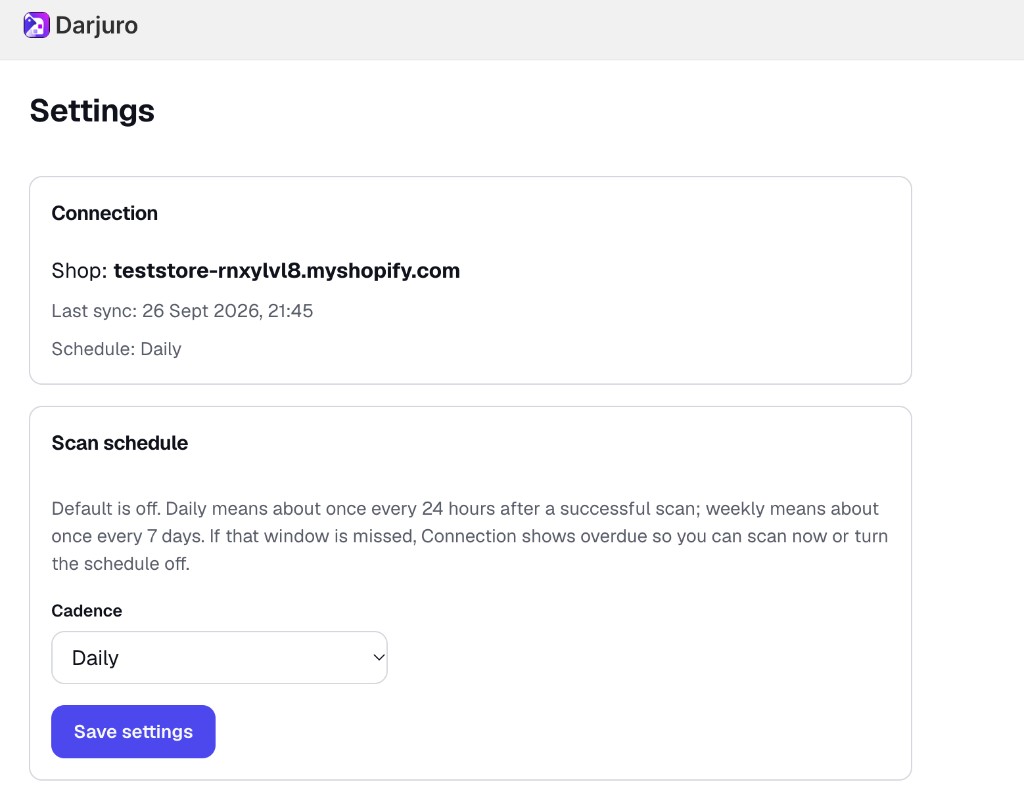
Settings shows the connected shop, the last sync, and the schedule currently saved. Cadence starts off. Daily means about once every 24 hours after a successful scan. Weekly means about once every 7 days. If that window is missed, Connection shows overdue so you can scan now or turn the schedule off. Save settings after you change the cadence.
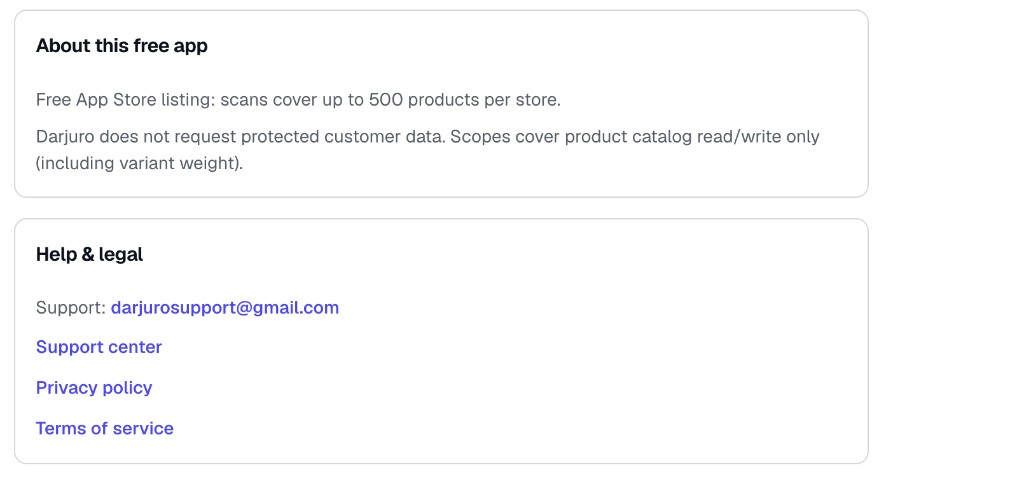
The same page states what the free app covers: scans up to 500 products per store, and product catalog access only, including variant weight. Help and legal links — this guide, the FAQ, support, the privacy policy, and the terms — live under that note.
Next
The FAQ answers what the app can change and what it leaves alone. Support is the contact address if a scan or a fix does not behave as these screens describe.